 BabyBallot
BabyBallot User Guide
Everything the app does, one step at a time. Draft — last updated August 1, 2026.
You don't need to read this in order. Use the list on the left to jump to whatever you're stuck on. Every screen in the app is covered somewhere below.
1. Getting started
What BabyBallot does
BabyBallot helps two people choose a baby name together without arguing about it.
Here's the idea. Instead of sitting down and saying names out loud — where whoever speaks first influences the other person — you each look at names privately, on your own phone. You swipe through them one at a time and say yes or no. Neither of you can see what the other picked. At the end, the app compares both lists and shows only the names you both said yes to.
Those shared picks are called your matches. Everything in the app is built to get you to that list.
What you need before you begin
- Two iPhones. One for each of you. The app is designed for two people; one person alone can swipe through names, but there is nobody to match with.
- The app installed on both phones.
- One monthly pass. Only one of you pays — see section 2.1.
- An internet connection at two moments only: when you send or accept the invite, and at the very end when the two phones swap results. All the swiping in between works with no signal at all.
Words used in this guide
| Word | What it means |
|---|---|
| Election | One complete run through the app, from first name to final matches. When you finish one, it gets saved and you can start another. |
| Round | One stage of an election. There are three: first names, middle names, then full combinations. |
| Deck | The stack of name cards you swipe through in a round. |
| Filter | A rule that removes names you don't want to see, like "only names starting with A". |
| Match | A name or combination that both of you liked. |
| Co-parent | The other person. The app uses this word for whoever you're naming the baby with. |
The Home screen, button by button
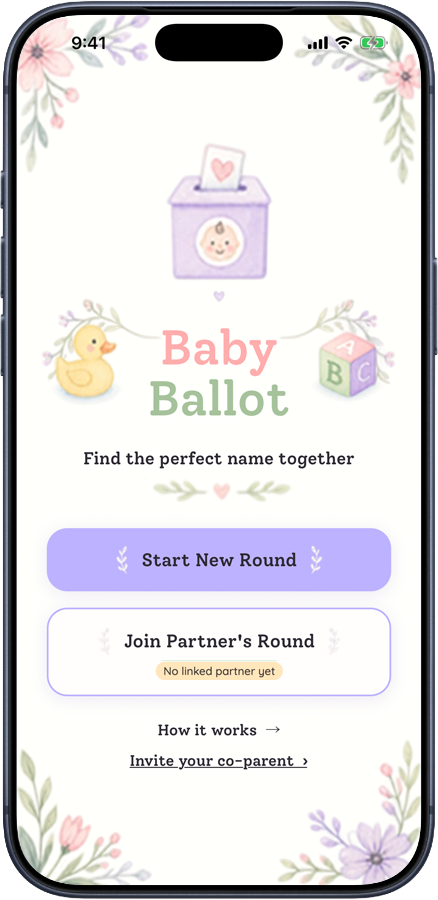
This is the screen you land on every time you open the app.
guide-img/01-home.png
| Button | What it does |
|---|---|
| Start New Round | Begins a brand-new election. If you already have one in progress, this button instead reads Resume Round and takes you back to exactly where you stopped. |
| Join Partner's Round | Use this when your co-parent has already started and you're catching up. |
| The small pill underneath | Tells you whether your co-parent has connected yet. It reads No linked partner yet in amber, or Partner linked in green. See section 3.3. |
| How it works → | A short slideshow explaining the app. Nothing here changes your data — it's safe to poke at. |
| Invite your co-parent › | Shows the QR code and link that gets the other person in. See section 3.1. |
| Review your rounds so far › | Shows every name you've liked so far, round by round. |
| Start over with a fresh round | Throws away the election in progress and begins again. Finished elections are kept. |
2. Getting access
Only one of you pays
This is the part people get wrong most often, so it's worth being clear:
- One person buys a monthly pass.
- That person sends an invite to the other.
- The person who accepts the invite gets full access free, for as long as the pass lasts.
You do not both need to buy anything. If you both bought a pass by mistake, email us and we'll help sort it out.
Buying a monthly pass
guide-img/02-paywall-first-month.png
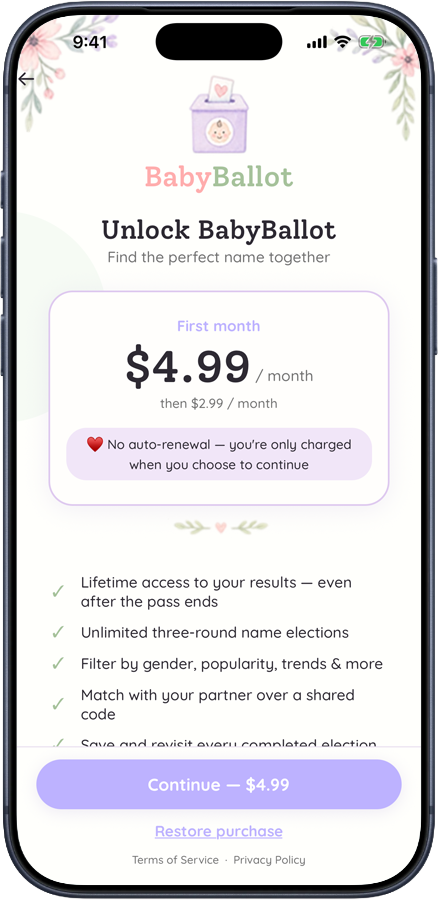
- Open the app. If you've never bought a pass, the plan screen appears on its own after the short slideshow. You can also reach it from Plans at the top of the slideshow.
- Check the price shown. Your first month is $4.99. Any month you buy after that is $2.99.
- Tap the purchase button and confirm with Face ID, Touch ID, or your Apple Account password, exactly like any other App Store purchase.
- The app unlocks straight away and you land back on Home.
Restoring a purchase
If you delete the app and reinstall it, or move to a new iPhone, your pass isn't lost — it's attached to your Apple Account.
- Open the app and get to the plan screen.
- Tap Restore purchase.
- Wait a moment. If a valid pass is found, access comes straight back.
If it says no pass was found, the most likely reason is that you're signed in with a different Apple Account than the one you bought with, or the month has already ended.
What happens when the month ends
You do not lose your names. When a pass expires:
- You can still open the app, read every finished election, and see all your matches.
- You cannot start a new election or swipe new names until you buy another month.
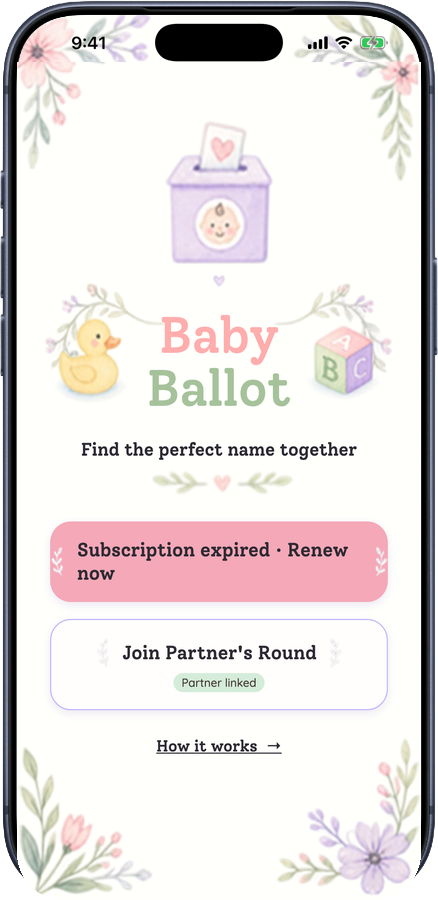
Home will show Subscription expired · Renew now. Tapping it takes you to the plan screen.
guide-img/03-home-expired.png
3. Connecting with your co-parent
Connecting happens once. After it's done, the two phones stay linked for every round and every future election — you never have to do it again.
Sending the invite (the payer)
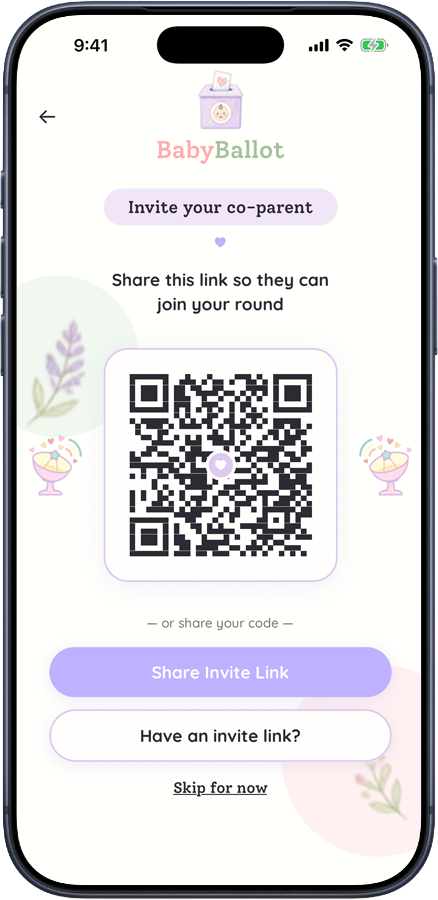
- On Home, tap Invite your co-parent ›.
- You'll see a QR code — a square black-and-white pattern — with your name for it below.
- Now pick one of these two ways to get it to the other person:
- In the same room: have them open the ordinary Camera app on their iPhone and point it at your screen. A yellow banner appears at the top of their camera; they tap it.
- Not in the same room: tap Share My QR Code and send the link by message or email.
guide-img/04-invite-qr.png
Accepting the invite (the co-parent)
- Tap the link you were sent, or tap the banner after scanning the QR code.
- A web page opens with a button that says Open BabyBallot. Tap it.
- If you don't have the app yet, tap the App Store button on that same page, install BabyBallot, then come back and tap the original link again. This second tap is the step people miss.
- The app opens and unlocks. You're in — you don't pay anything.
If the app is already open and nothing seems to happen, go to Home and look for Have an invite link?, which lets you paste the link in by hand.
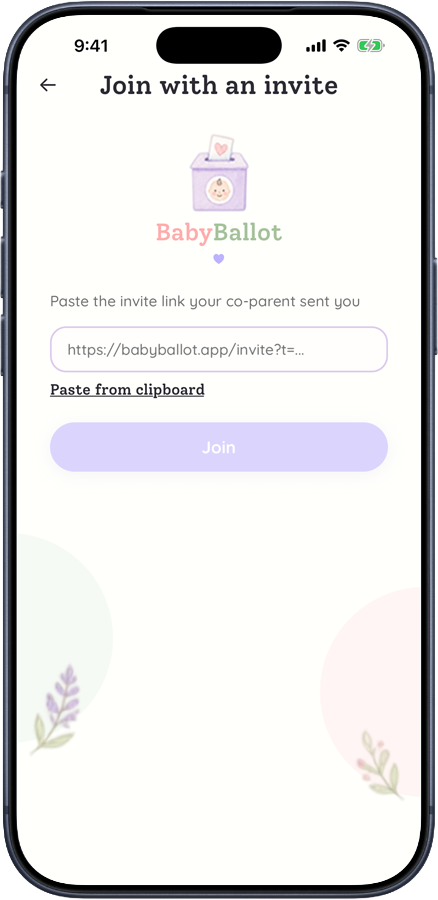
guide-img/05-redeem-invite.png
Checking that you're connected
Look at the small pill under Join Partner's Round on Home.
| What it says | What it means |
|---|---|
| Amber — No linked partner yet | Nobody has accepted your invite yet, or your phone hasn't heard about it yet. |
| Green — Partner linked | Your co-parent accepted. Once this turns green it stays green. |
The label can take a moment to update. Leave the Home screen and come back to make the app check again.
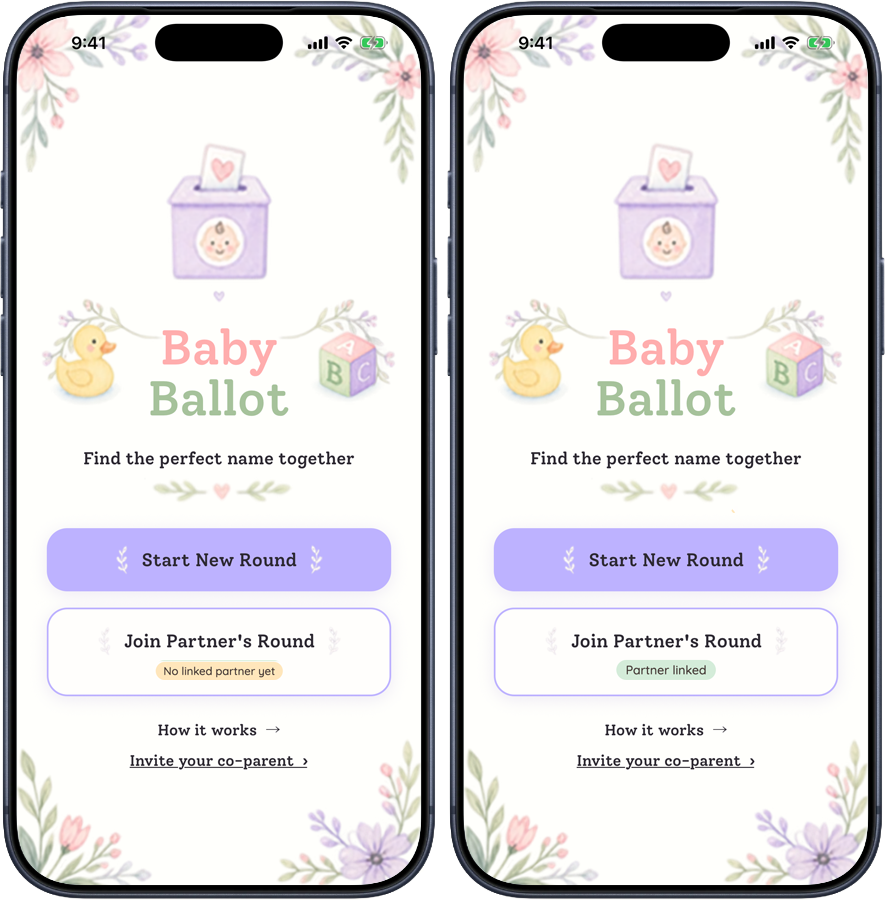
guide-img/06-partner-pill.png
If the invite doesn't work
- Nothing happens when they tap the link. The app probably isn't installed yet. Install it, then tap the link a second time.
- The QR code won't scan. Turn your screen brightness up, hold the phones about a hand's width apart, and keep the whole square in frame.
- They accepted, but your pill is still amber. Leave Home and come back. If it's still amber after a few minutes with both phones online, email support.
4. How the three rounds work
The big picture
An election is three rounds, always in this order:
| Round | You swipe | Example |
|---|---|---|
| 1 | First names | Olivia |
| 2 | Middle names | Rose |
| 3 | Full combinations, built from what you liked in rounds 1 and 2 | Olivia Rose |
You do rounds 1 and 2 alone, at your own pace. Your co-parent does the same on their phone. Nothing is compared until the very end.
Why the order matters
Round 3 can only build combinations out of names you already said yes to. If you like six first names and six middle names, the app can build thirty-six combinations. If you like one of each, it can build exactly one. So being a little generous in rounds 1 and 2 gives round 3 more to work with.
5. Round 1 — First names
Round 1 has five steps: narrow the list, choose how many, add your own names, swipe, then review. Rounds 2 and 3 reuse the same screens, so read this section carefully and the rest of the app will feel familiar.
Step 1: Narrow the list
The app knows thousands of real names. Swiping through all of them would take days, so first you tell it what you're not interested in. This screen is titled Narrow the list.
Every filter is optional. Skipping all of them is fine — you'll just have more names to swipe.
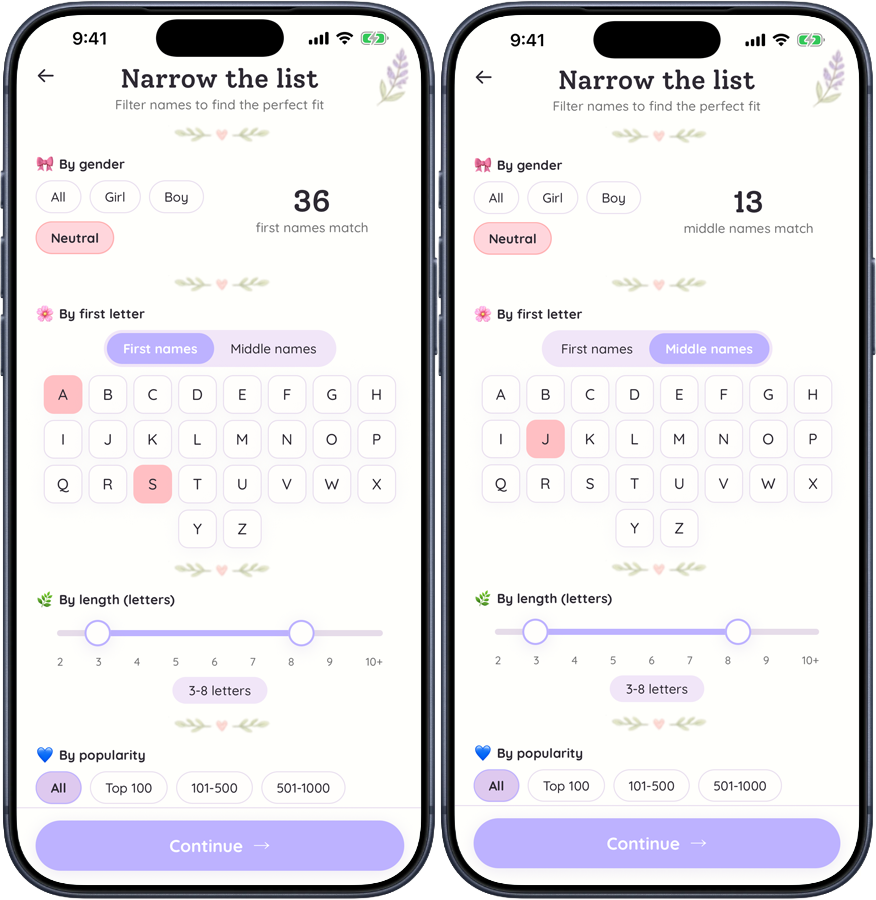
guide-img/07-filters.png
Filtering by first letter
A grid of letters A to Z. Each letter has three states, and you move between them by tapping the same letter again and again:
| Tap | State | Meaning |
|---|---|---|
| Once | Pink | Only show me names starting with this letter. |
| Twice | Crossed out | Never show me names starting with this letter. |
| Three times | Plain | Back to normal — this letter is neither required nor banned. |
You can pick several letters at once. Choosing A, E and L means "show me names starting with A, E or L" — not names containing all three.
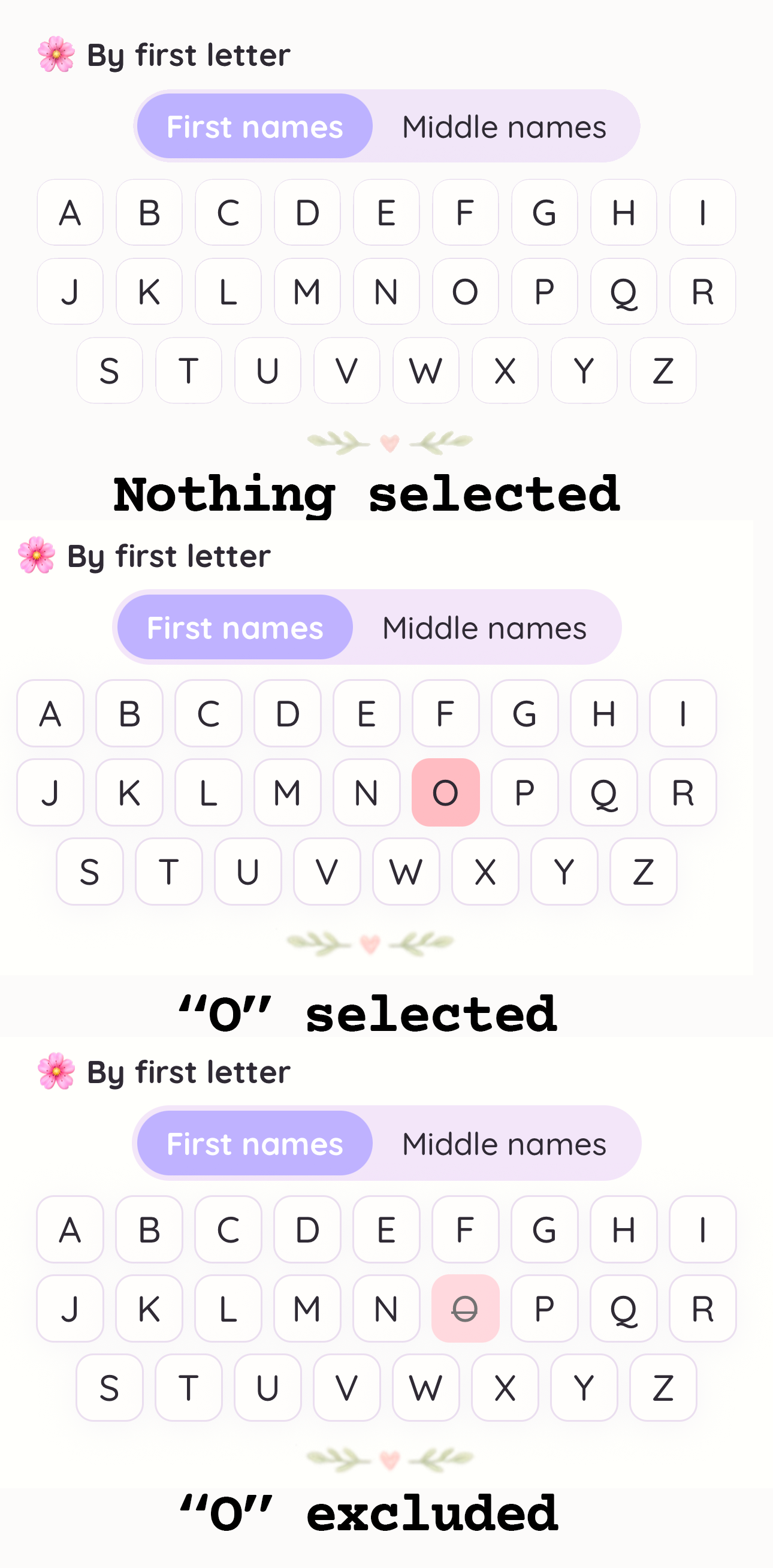
guide-img/08-letter-grid.png
Filtering by gender
Four choices: All, Girl, Boy, Neutral. Pick one. Neutral means names commonly given to any child.
Filtering by length
A slider with two handles that sets the shortest and longest name you want to see, counted in letters. Drag the left handle for the minimum and the right handle for the maximum. The pill underneath shows your current setting, like 3–8 letters.
Filtering by popularity
Based on how many babies were actually given each name. The choices are All, Top 100, 101-500, 501-1000, 1000+.
- Want a name people recognise? Choose Top 100.
- Want something unusual? Choose 1000+, which means "ranked beyond 1000" — the rarer end.
Filtering by trend
Which direction a name is heading: All, Rising, Newcomer, Steady, Timeless.
| Rising | Getting more popular each year. |
| Newcomer | Only recently became common. |
| Steady | About as popular as it has always been. |
| Timeless | Has been in use for a very long time. |
Filtering by syllables
Syllables are the beats in a name when you say it out loud. Grace is one beat. Olivia is four. Choose All, 1, 2, 3, or 4+.
Reading the live counter
At the bottom of the screen a big number tells you how many names currently match your filters. It updates the instant you change anything.
- A very small number (under about 20) means your filters are too strict. Loosen one.
- A very large number is fine — the next screen lets you cut it down.
When you're happy, tap Continue →.
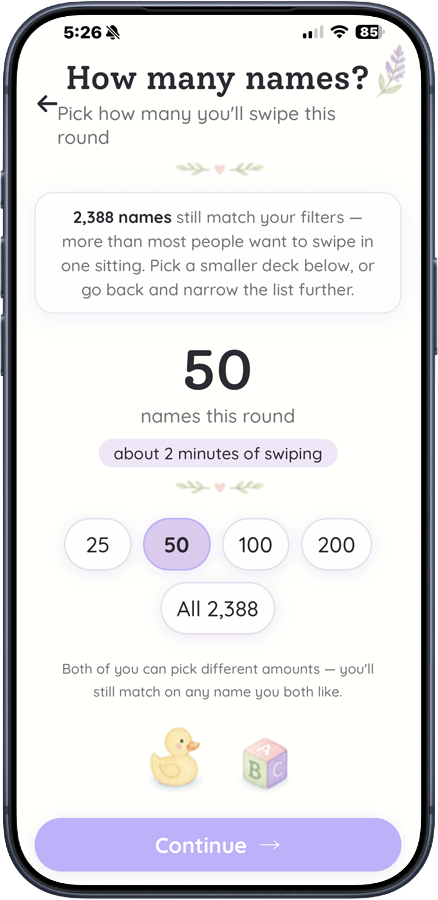
Step 2: How many names?
If your filters still leave a lot of names, the app asks How many names? and offers a few deck sizes, with a rough estimate of how long each will take to swipe.
- Pick a size. Smaller is faster; larger gives more variety.
- Tap Continue.
If you go back and change your filters later, the app may ask this question again, because the pool of names it's drawing from has changed.
guide-img/09-count.png
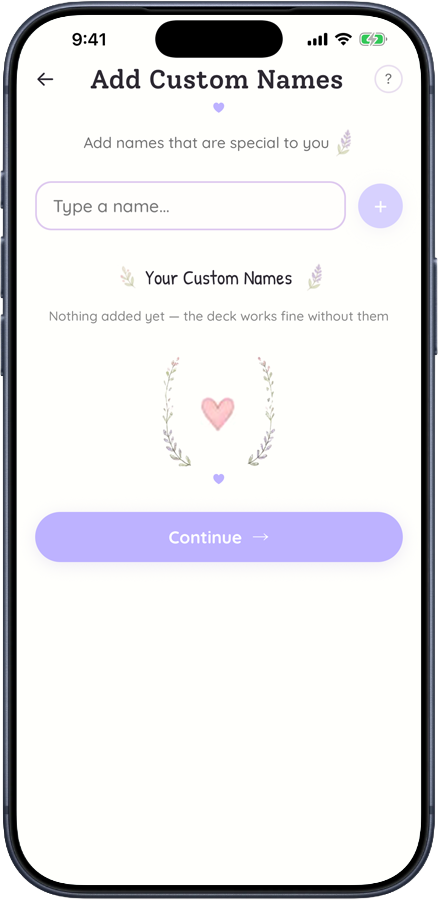
Step 3: Add your own names
The screen is called Add Custom Names. Use it for names that matter to you personally — a grandparent, a favourite character, something you invented.
- Tap the box that says Type a name… and type one name.
- Tap the round + button beside it.
- The name appears below as a coloured pill. Repeat for as many as you like.
- To remove one, tap the × on its pill.
- Tap Continue when you're done. You can also add nothing at all.
Two limits: you can add up to 20 names, and you can't add the same name twice — try it and the box gives a little shake.
Your custom names get shuffled into the deck along with the app's own names. Your co-parent will not see them unless they added the same name themselves.
guide-img/10-add-names.png
Step 4: Swiping
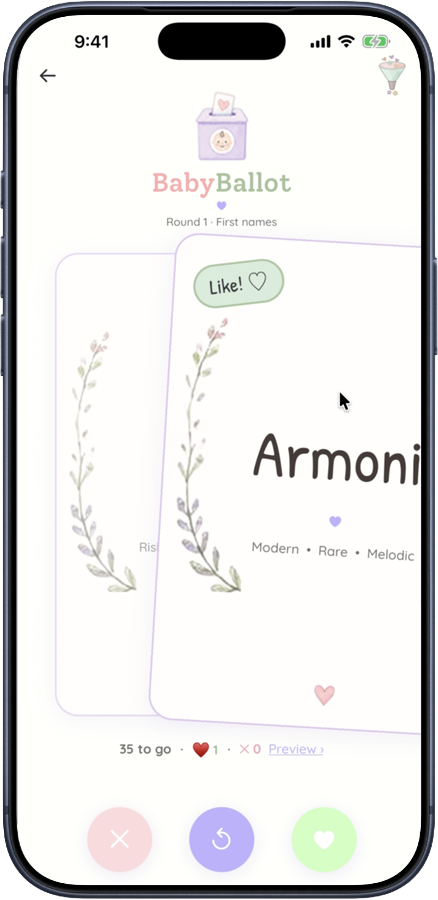
This is the main event. One name fills the screen on a card.
- Read the name.
- Drag the card to the right if you like it. A green marker appears.
- Drag the card to the left if you don't. A pink marker appears.
- Let go. The card flies away and the next name appears.
If you drag only a little way and let go, the card springs back and nothing is recorded — so you can start a drag, change your mind, and pull back.
guide-img/11-swipe.png
The three buttons
Under the card are three round buttons. They do the same thing as swiping, for when you'd rather tap.
| Button | Colour | What it does |
|---|---|---|
| ✕ | Pink | No — same as swiping left. |
| ↺ | Purple | Undo the last card. |
| ♥ | Green | Yes — same as swiping right. |
The counters at the top of the screen show how many you've said yes and no to so far.
Undoing a mistake
Swiped the wrong way? Tap the middle ↺ button. The last card comes back and your answer to it is thrown away. It's greyed out at the very start of a round, when there's nothing to undo yet.
You can also fix answers later, in bulk — see the round summary below.
Peeking at your list mid-round
Tap Preview › to see the names you've liked so far without losing your place. Go back and you carry on from the same card.
Step 5: The round summary
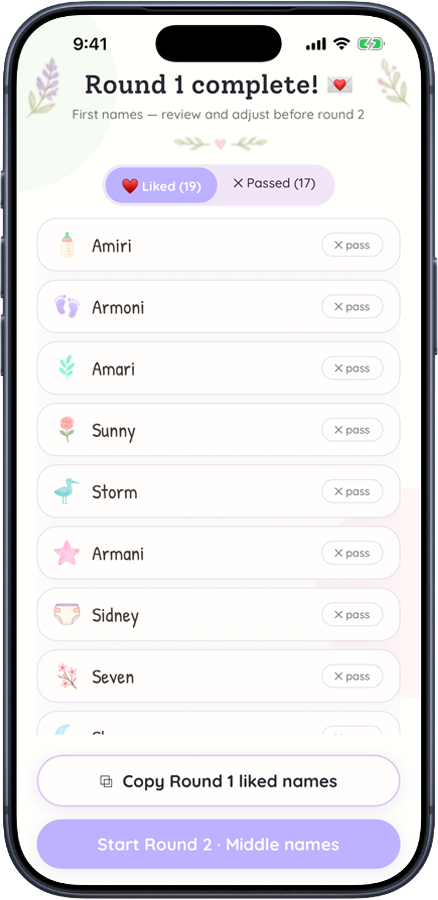
When the deck runs out you get a summary screen — Round 1 complete! — listing every name you liked and every name you passed on.
This is your chance to change your mind. Tap any name to move it between the liked and passed lists. Nothing is final until you continue.
When you're happy, tap Start Round 2 · Middle names.
guide-img/12-round-summary.png
6. Round 2 — Middle names
Round 2 works exactly like round 1 — same filters, same deck size question, same custom names, same swiping. The only difference is what you're choosing: this time the names will sit in the middle.
Two things to remember:
- The letter filter is separate from round 1, so set it again if you want it.
- It's fine to like a name in round 2 that you also liked in round 1. The app simply won't pair a name with itself in round 3 — no "Olivia Olivia".
At the end you get Round 2 complete! and a button reading Start Round 3 · Combinations.
7. Round 3 — Combinations
Where the combinations come from
Round 3 pairs every first name you liked with every middle name you liked. Like Olivia and Mia in round 1, and Rose and Jane in round 2, and round 3 shows you:
- Olivia Rose
- Olivia Jane
- Mia Rose
- Mia Jane
There are no filters in round 3, and no deck-size question. There's nothing left to filter — the deck is built entirely from choices you already made.
Swiping combinations
Swipe exactly as before, but now you're judging how the two names sound together. Say each one out loud with your last name. A combination that looked fine on paper often doesn't survive being spoken.
When the deck runs out, you're done with your half of the work.
8. Exchanging results
What the app is doing
Up to now, neither of you has seen anything the other picked. To find your matches, the two phones have to compare notes. That's this step.
Your phone sends up the combinations you liked in round 3, and waits for your co-parent's phone to send theirs. When both have arrived, the app works out which appear on both lists.
Only round 3 combinations are sent. Your first-name and middle-name choices never leave your phone.
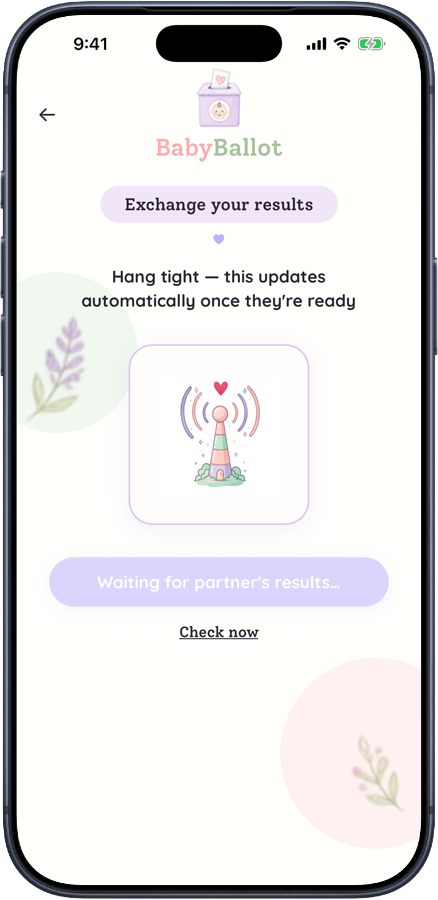
The waiting screen
You'll see Exchange your results with an animation. What happens next depends on whether your co-parent has finished:
| If they… | You see |
|---|---|
| Haven't finished round 3 yet | A waiting message. This is normal and can last as long as it takes them. |
| Have already finished | The screen turns into Results are ready! Tap to view within a few seconds. |
You don't have to sit and stare at it. The app checks by itself every few seconds, and picks up again when you come back to it. There's also a Check now link if you're impatient.
guide-img/13-exchange-waiting.png
If it waits a long time
- Check that your co-parent has actually finished all three rounds. This is the usual answer.
- Check that both phones have a working internet connection.
- Tap Check now.
- Still nothing after a few minutes with both of you finished? Close the app completely and reopen it, then go back to the exchange screen.
Nothing is lost while you wait. Your picks are saved on your phone, and the back arrow takes you to your round summary at any time.
9. Seeing your matches
The match list
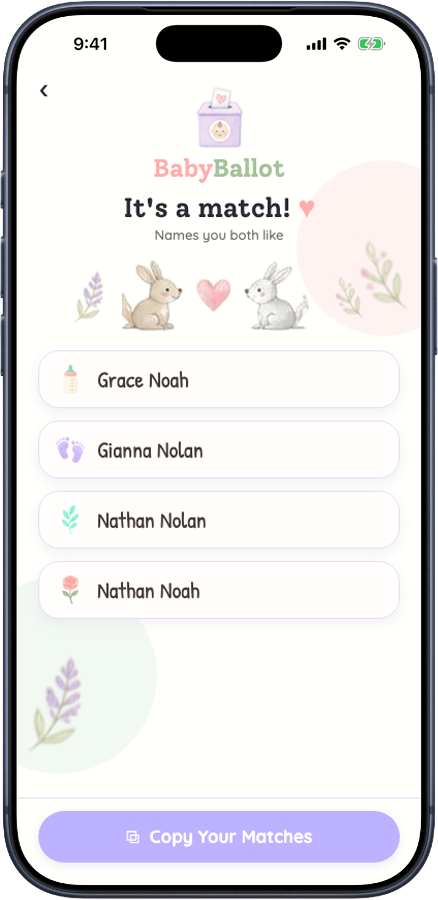
When both sets of results are in, you get a celebration screen and then It's a match! — the list of full name combinations you both said yes to.
This list is the whole point of the app. Anything on it has already been approved by both of you, so there's no negotiating left to do.
guide-img/14-matches.png
If there are no matches
Sometimes there's no overlap at all. You'll see a screen titled Oopsies! This is a real answer, not an error — it means your tastes genuinely didn't cross this time.
What to do about it:
- Run another election and be more generous in rounds 1 and 2. More liked names means many more combinations, and a much better chance of overlap.
- Loosen your filters so you're both drawing from a wider pool of names.
- Compare your round-by-round lists by hand — the copy feature below makes this easy — and talk about the near misses.
Copying your results out
Anywhere you see a copy button, the app puts your names on the clipboard as plain text so you can paste them into Messages, Notes, or an email.
| Copy Your Matches | Just the shared list. |
| Copy full election | Everything: all three rounds plus the matches. |
| Copy names | On a round summary — that round's names only. |
10. Saved elections
Reopening an old election
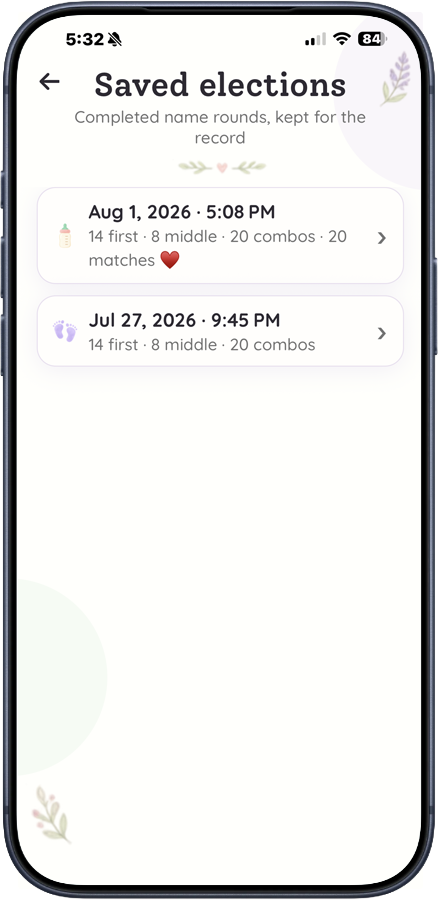
Every completed election is saved on your phone with the date you finished it. Open one to see its rounds and its matches exactly as they were.
Saved elections stay readable even after your month runs out.
guide-img/15-saved-elections.png
Starting a fresh election
Tap Start over with a fresh round on Home. This clears the election in progress and begins a new one. Elections you already finished are kept.
Reasons to start over: you got no matches, you want to try different filters, or you're naming a second baby.
11. Your privacy
What stays on your phone
- Your filters and settings.
- Every first name and middle name you liked or passed on.
- Any custom names you typed.
- All your saved elections.
There are no accounts and no sign-in. We don't know who you are.
What leaves your phone
Exactly two things:
- Your round-3 combinations, at the exchange step, so the two phones can work out which ones you agreed on.
- A one-line note that an invite was accepted, so the other phone can show "Partner linked".
That's all. No analytics, no advertising, no personal information. Full details are in the Privacy Policy.
12. Troubleshooting
Common questions
Do we both have to pay?
No. One pass covers both of you. The second person joins with an invite link.
Will I be charged again next month?
No. Nothing renews on its own. If you want another month, you buy it deliberately.
Can my co-parent see what I picked before the end?
No. Nothing is shared until you both finish round 3, and even then only the combinations you liked are compared.
Can we use the app in different places?
Yes. You never need to be together — the invite link works by message, and the exchange happens over the internet.
I closed the app in the middle of a round. Did I lose my work?
No. Your progress is saved as you go. Reopen the app and tap Resume Round.
Can I change a name I swiped by accident?
Yes — immediately, with the ↺ undo button, or at the end of the round on the summary screen, where you can move any name between liked and passed.
What if we get no matches?
See section 9.2. Short version: like more names next time.
I got a new phone. Are my elections still there?
Your saved elections live on the old phone and don't travel with you. Your purchase does — restore it on the new phone. Copy out anything you want to keep before you switch.
Contacting us
Email support@babyballot.app. Please tell us your iPhone model and iOS version, and describe what you saw — it helps us answer quickly.